OnlyKey For iPhone and Android
Modern mobile devices like iPhone and Android already contain a security key (FIDO2 authenticator) and support strong authentication features like TouchID and FaceID.
What works well for most mobile users is to use OnlyKey for the first login to a new app. After the first login the app has the option to enable Touch/FaceID to log in from then on. This allows enforcing strong passwords (typed by OnlyKey) and two-factor authentication while also not requiring to plug OnlyKey in each time.
Using OnlyKey for the first login to a new app is easy and no adapter is required for OnlyKey DUO (USB-C) devices. For OnlyKey (USB-A) and iPhone a USB adapter is available here.
Mobile Security Considerations
Before using a security key with a mobile device here are some considerations.
| Built-in Security Key | USB Security Key | NFC Security Key | |
|---|---|---|---|
| Physical Security* | Medium | High | Low |
| Convenience | High | Low | Medium |
*NFC devices are vulnerable to attacks from a close proximity (someone bumps into you) while USB and built-in security keys require physical access (someone steals your phone/key and your fingerprint/pin). A mobile device’s built-in security key is generally both higher security and more convenient than an NFC device.
How to Use Built-in Security Key on Android
Android Example:
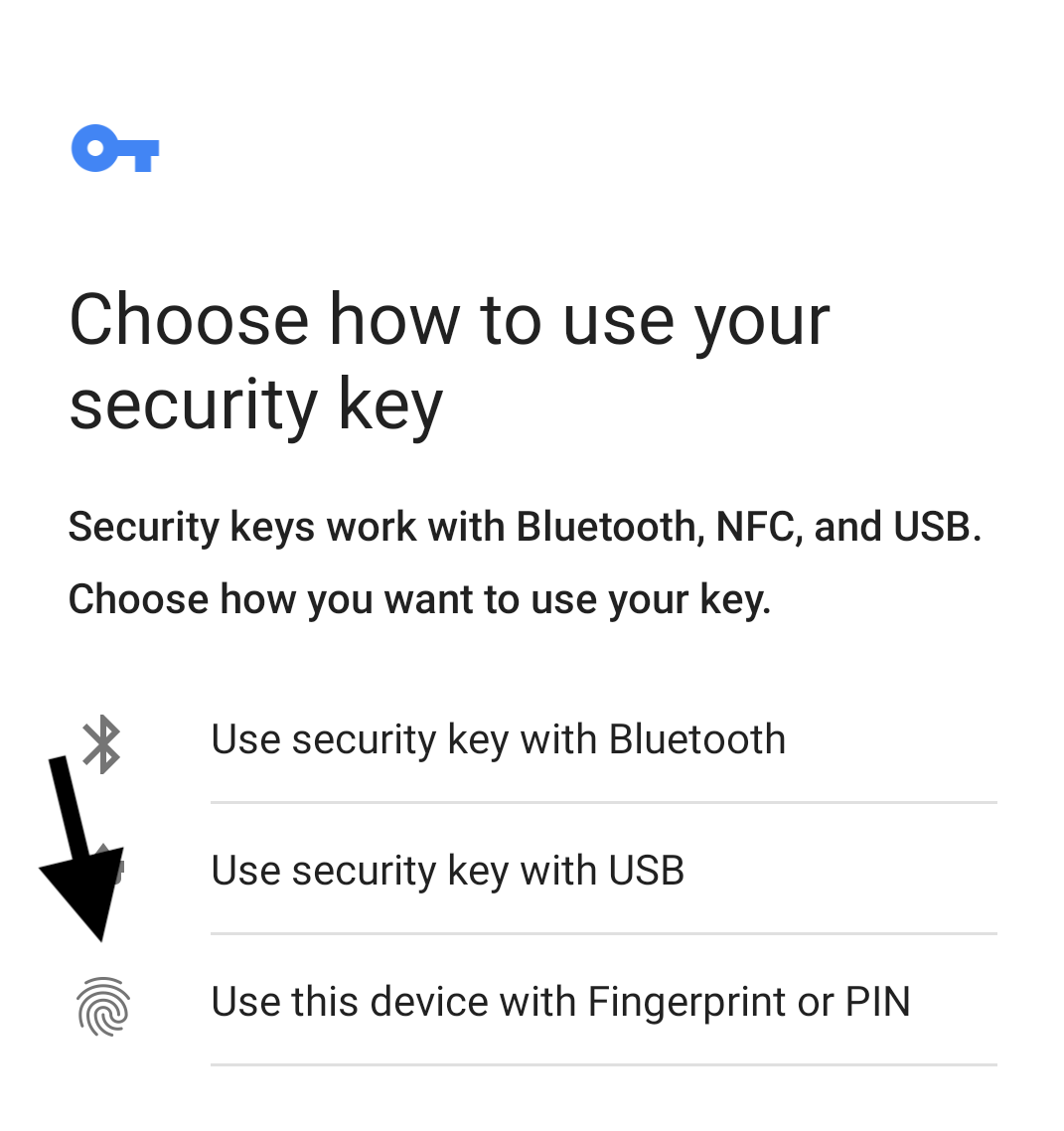
- Open the Chrome browser and browse to https://www.passwordless.dev/mfa#heroFoot.
- Create a test account, and when prompted select “Use this device with Fingerprint or PIN” to register, do the same to sign in.
How to Use Built-in Security Key on iOS
iOS Example:
- Open the Safari (14 or later) browser and browse to https://www.passwordless.dev/mfa#heroFoot.
- Create a test account, and when prompted select the built-in security key to register, do the same to sign in.
Built-in Mobile Biometric 2FA Works Together with OnlyKey
OnlyKey can be used together with mobile apps that permit login via fingerprint (Touch ID / Face ID). Just use OnlyKey to enter password and/or 2FA for the mobile app first time login, then once logged in enable the built-in mobile biometric 2FA for future logins.
OnlyKey Mobile Prerequisites
- Ensure the latest firmware is loaded on OnlyKey. Instructions are available here for loading firmware.
- Connect to mobile device using adapter. On-the-go USB-C, Lightning and multi adapters may also be purchased here.
- To encrypt/decrypt a key must be loaded on OnlyKey. Instructions are available here.
Android/iOS Static Password, TOTP, and Yubikey OTP Support
Since the OnlyKey is essentially detected by mobile device as a keyboard, the username / password / Yubikey® OTP login features will work.
The TOTP feature requires the correct time in order to generate correct codes. In order to set the time on OnlyKey browse to https://apps.crp.to from Chrome or Firefox in Android (Safari in iOS) before trying to login.
Using OnlyKey as a Security Key on Android
Registering and logging in with OnlyKey as a security key on Android is almost the same as using on a desktop computer. This is currently supported using Firefox and Chrome browsers for Android. To use OnlyKey as a security key:
- Plug OnlyKey into mobile device using adapter
- Enter PIN to unlock OnlyKey
- Browse to the site you wish to use OnlyKey with
- Register OnlyKey as a security key (Android has several pop up messages that you must accept to proceed)
- Once registered you can use OnlyKey as a security key to login
If you have already registered OnlyKey as a security key for a website on desktop computer you may still have to re-register security key on Android.
Using OnlyKey to encrypt files on Android
This is currently supported using Firefox and Chrome browsers for Android. To use OnlyKey to encrypt/decrypt files:
- Plug OnlyKey into mobile device using adapter
- Enter PIN to unlock OnlyKey
- Browse to https://apps.crp.to/encrypt-file
- A pop-up will appear that you must accept for the device to communicate with OnlyKey
- If OnlyKey is correctly connected a message will show “OnlyKey v0.2-beta.8c Secure Connection Established”
- Enter your Keybase username and the recipient’s username (if you are encrypting files for yourself this is your username)
- Select files to encrypt and click encrypt and sign
- Accept the pop-up messages that appear so that the device may communicate with OnlyKey
- Enter the challenge code on OnlyKey
The challenge code is an added security feature, if ease of use is the priority this can be turned off so that pressing any button will confirm. To do this set ‘Disable Challenge Code for PGP’ in the OnlyKey app preferences.
Using OnlyKey to decrypt files on Android
- Plug OnlyKey into mobile device using adapter
- Enter PIN to unlock OnlyKey
- Browse to https://apps.crp.to/decrypt-file
- A pop-up will appear that you must accept for the device to communicate with OnlyKey
- If OnlyKey is correctly connected a message will show “OnlyKey v0.2-beta.8c Secure Connection Established”
- Enter your Keybase username
- Select the encrypted file to decrypt (should be a .gpg file) and click decrypt
- Accept the pop-up messages that appear so that the device may communicate with OnlyKey
- Enter the challenge code on OnlyKey
- Once completed a zip file containing your files will be downloaded to Android
- Use a zip utility app to open the zip and access files i.e. Winzip for Android
Using OnlyKey as a Security Key on iOS
Registering and logging in with OnlyKey as a security key on iOS is almost the same as using on a desktop computer. This is currently supported using the iOS Safari browser. To use OnlyKey as a security key:
- Plug OnlyKey into mobile device using adapter
- Enter PIN to unlock OnlyKey
- Browse to the site you wish to use OnlyKey with
- Register OnlyKey as a security key (iOS may have several pop up messages that you must accept to proceed)
- Once registered you can use OnlyKey as a security key to login
If you have already registered OnlyKey as a security key for a website on desktop computer you may still have to re-register security key on iOS.