OnlyKey App
This is the official app for OnlyKey
OnlyKey can be purchased here: OnlyKey order
About
OnlyKey App is an app to be used along with an OnlyKey device. The app is used for things like:
- Initial setup of OnlyKey (PINs)
- Configuration of accounts (Slots)
- Loading keys for OpenPGP and secure backup (Keys)
- Backup and restore of OnlyKey (Backup/Restore)
- Setting OnlyKey preferences (Preferences)
- Setting advanced options (Advanced)
The app is required on all systems where Google Authenticator (TOTP) is used
For information on using the app with OnlyKey see the OnlyKey User’s Guide
Install OnlyKey App
Step 1. Download installer
There is also a portable version here, which permits using the OnlyKey App in enterprise environments where users may not have admin rights.
If a UDEV rule has not been created previously, follow the instructions here. The OnlyKey app may also be installed via snapcraft - Linux Guide.
Step 2. Install and launch the app.
You can ensure the integrity of your downloaded file by verifying the checksum.
macOS SHA 256 CHECKSUM: 1f7756227af0752bf2d1071bf6f04e5a3282df54ac0125fdfb4abfab7edb115a
Windows SHA 256 CHECKSUM: 22fc0b80d0b11fa5b0f9a566ae11edb8aee41e53905259e2a8a948c71e45e1fe
Linux SHA 256 CHECKSUM: f00f056a3432d624a805596a6c6b0f2ce5d8efa8c95da1baac39599946301065
Linux App GPG Public Key A1D6 4A3B 496C B0F3 6E12 B46F 9A9F 520D 44EA 53D1
If you have an OnlyKey to set up, once you have installed the app proceed to OnlyKey Setup
OnlyKey Chrome App
The OnlyKey Chrome App is deprecated. Google has ended support for Chrome Apps — ChromeOS 138 (July 2025) was the last ChromeOS release that supported user-installed Chrome apps, and Chrome Apps were removed from desktop Chrome, Chromium, Brave, and Edge in earlier releases. Use the desktop OnlyKey App for macOS, Windows, or Linux instead. The instructions below are retained for reference only.
The Chrome app has limited features and was only intended for use where the desktop app is unavailable, such as on ChromeOS or unsupported ARM based operating systems.
ChromeOS
Step 1. Open the Chrome (Chromium, Brave, Edge) Web Browser. If you do not have the chrome web browser installed you can install this by following the instructions here: https://www.google.com/chrome/browser/desktop/
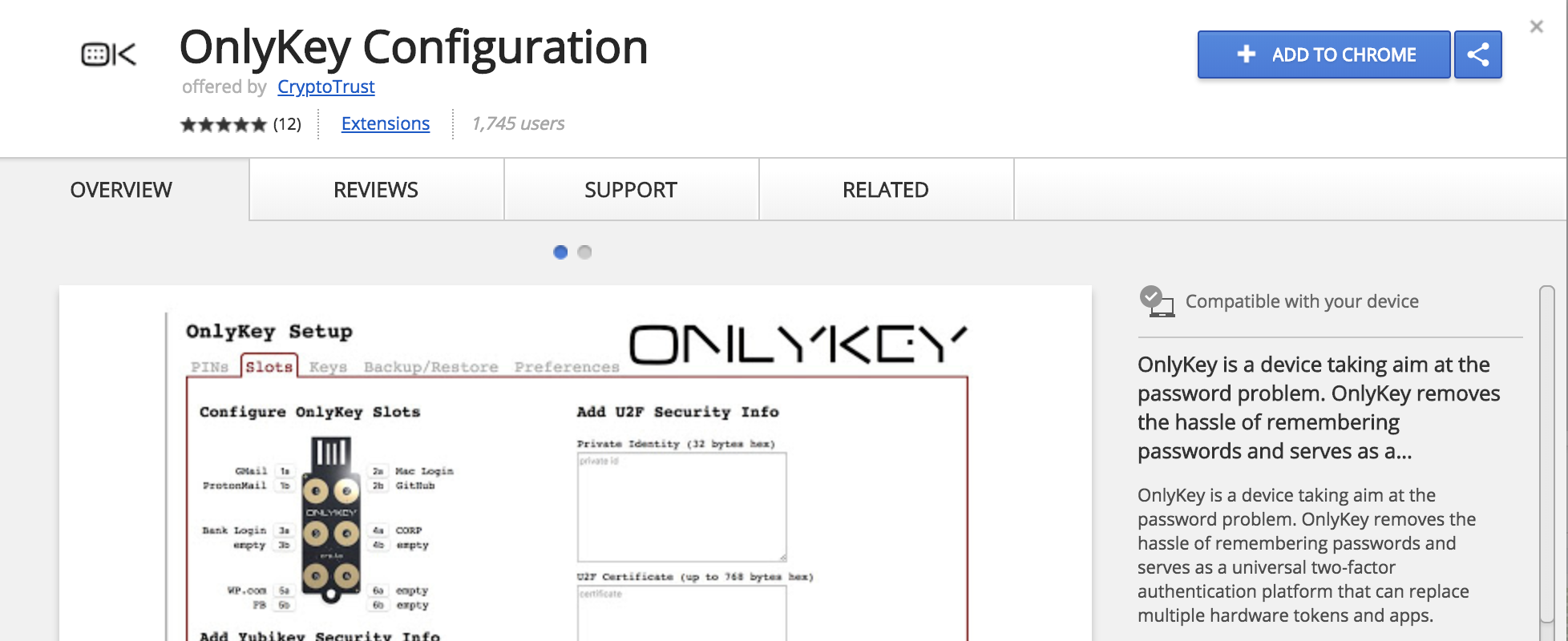
Step 2. Click here to browse to the OnlyKey Configuration Web app on the Chrome Web Store and select ‘Add to Chrome’
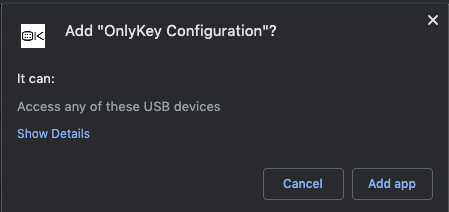
Step 3. When prompted select ‘‘Add App’’
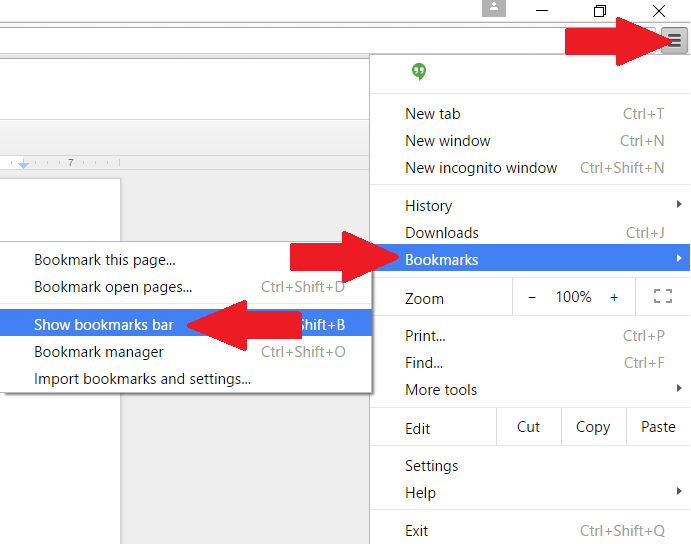
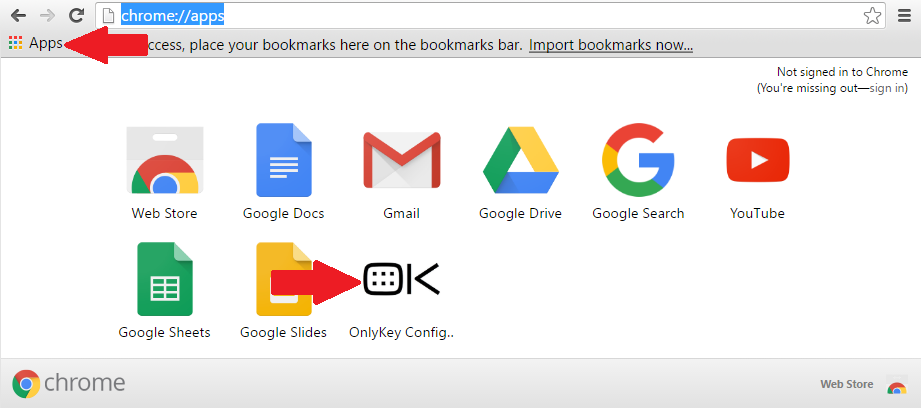
Step 4. To launch the OnlyKey Configuration App select the top right menu icon -> Bookmarks -> Show Bookmarks Bar to enable the bookmarks bar to become visible. Then select the Apps icon (Or alternatively browse to ‘‘chrome://apps/’’) and then select the ‘‘OK’’ icon to launch the OnlyKey App.
ARM Operating Systems
Step 1. Download the OnlyKey Chrome App Zip file here.
Step 2. Go to the Extensions settings in your Chrome, Edge, or Brave browser (chrome://extensions, edge://extensions, or brave://extensions) and select ‘Developer Mode’ to enable loading extensions
Step 3. Unzip the OnlyKey Chrome App Zip file and select ‘Load Unpacked’ on the Extensions screen. Select the OnlyKey_Chrome_App folder, this will load the unpacked OnlyKey Chrome App.
Support
Check out the OnlyKey Support Forum
Check out the OnlyKey Documentation